728x90
🟪 개요
OCR AI 가 인식한 텍스트의 좌표 값이 반환됨을 알게 되었다.
- 이를 이용해 관리자 입장에서 텍스트를 인식할 영역 좌표를 미리 저장해 둔뒤,
- OCR AI가 인식한 테스트의 좌표 값들의 중앙 값을 계산하여
- 미리 저장된 좌표들 중 어느 좌표 중앙 값에 있는지 계산하면
자동 맵핑이 가능할 것 같았다.

위는 Google Vision API를 돌렸을 때 결과 값이다.

이렇게 접수번호로 추출할 영역(초록색 좌표 값)을 미리 "접수번호" 필드로 저장해놓고,
Google Vision API가 인식한 텍스트 좌표값의 중앙 값(보라색 좌표 값)이 추출할 영역 안에 들어 있으면
자동으로 "접수번호"필드에 저장이 될 것이다.
아래는 구현 코드이다.
🟪 좌표 추출 코드(Python GUI tkinter 라이브러리 사용)
import tkinter as tk
from tkinter import filedialog, simpledialog
from PIL import Image, ImageTk
import json

# === 설정 ===
image_path = "이미지경로"
img = Image.open(image_path)
boxes = []  # 저장될 필드 정보
start_x = start_y = 0
rect_id = None

# === 이벤트 핸들러 ===
def on_mouse_down(event):
    global start_x, start_y, rect_id
    start_x, start_y = canvas.canvasx(event.x), canvas.canvasy(event.y)
    rect_id = canvas.create_rectangle(start_x, start_y, start_x, start_y,
                                      outline='blue', width=2, fill='#CCEEFF', stipple='gray50')

def on_mouse_drag(event):
    if rect_id:
        curr_x, curr_y = canvas.canvasx(event.x), canvas.canvasy(event.y)
        canvas.coords(rect_id, start_x, start_y, curr_x, curr_y)

def on_mouse_up(event):
    global rect_id
    end_x, end_y = canvas.canvasx(event.x), canvas.canvasy(event.y)

    field = simpledialog.askstring("필드명 입력", "이 박스의 필드명은?")
    if field:
        box = {
            "top_left": [int(start_x), int(start_y)],
            "top_right": [int(end_x), int(start_y)],
            "bottom_left": [int(start_x), int(end_y)],
            "bottom_right": [int(end_x), int(end_y)]
        }
        boxes.append({"field": field, "box": box})
        canvas.create_text(start_x + 5, start_y - 10, text=field, anchor="nw", fill="red")

    rect_id = None

# === 저장 ===
def save_json():
    if not boxes:
        print("❌ 저장할 박스가 없음")
        return
    output = {item['field']: item['box'] for item in boxes}
    with open("field_template_boxes.json", "w", encoding="utf-8") as f:
        json.dump(output, f, ensure_ascii=False, indent=2)
    print("✅ field_template_boxes.json 저장 완료!")

# === Tkinter 기본 설정 ===
root = tk.Tk()
root.title("OCR 필드 지정기 (Tkinter with Scroll)")

frame = tk.Frame(root)
frame.pack(fill="both", expand=True)

canvas = tk.Canvas(frame, width=1000, height=800, bg='white', scrollregion=(0, 0, img.width, img.height))
canvas.pack(side="left", fill="both", expand=True)

hbar = tk.Scrollbar(frame, orient="horizontal", command=canvas.xview)
hbar.pack(side="bottom", fill="x")
vbar = tk.Scrollbar(frame, orient="vertical", command=canvas.yview)
vbar.pack(side="right", fill="y")
canvas.configure(xscrollcommand=hbar.set, yscrollcommand=vbar.set)

img_tk = ImageTk.PhotoImage(img)
canvas.create_image(0, 0, anchor="nw", image=img_tk)

canvas.bind("<ButtonPress-1>", on_mouse_down)
canvas.bind("<B1-Motion>", on_mouse_drag)
canvas.bind("<ButtonRelease-1>", on_mouse_up)

save_btn = tk.Button(root, text="💾 JSON 저장하기", command=save_json)
save_btn.pack(pady=10)

root.mainloop()결과 예시(field_template_boxes.json)
{
  "접수번호": {
    "top_left": [
      361,
      295
    ],
    "top_right": [
      625,
      295
    ],
    "bottom_left": [
      361,
      339
    ],
    "bottom_right": [
      625,
      339
    ]
  },
  "성명": {
    "top_left": [
      360,
      339
    ],
    "top_right": [
      624,
      339
    ],
    "bottom_left": [
      360,
      386
    ],
    "bottom_right": [
      624,
      386
    ]
  },
}🟪 Google Vision API (OCR AI)를 활용한 Field 자동 맵핑 구현 코드
import requests
import base64
import json
import os
from dotenv import load_dotenv

# .env 파일 읽기
load_dotenv()

# 1. API Key
API_KEY = os.getenv('VISION_API_KEY')

# 2. API URL
VISION_API_URL = f"https://vision.googleapis.com/v1/images:annotate?key={API_KEY}"

# 3. 이미지 로드하고 base64 인코딩
def encode_image(image_path):
    with open(image_path, "rb") as image_file:
        content = base64.b64encode(image_file.read()).decode('utf-8')
    return content

# 4. Vision API 요청 보내기
def request_vision_ocr(image_path):
    image_content = encode_image(image_path)
    request_body = {
        "requests": [
            {
                "image": {"content": image_content},
                "features": [{"type": "DOCUMENT_TEXT_DETECTION"}]
            }
        ]
    }
    response = requests.post(VISION_API_URL, json=request_body)
    return response.json()

# 5. 결과 가져오기
image_path = "이미지"
vision_result = request_vision_ocr(image_path)

# 6. OCR 결과 확인
print(vision_result)

# 결과 확인
annotations = vision_result['responses'][0]['textAnnotations']
for ann in annotations[1:]:
    print(ann['description'])
    print(ann['boundingPoly']['vertices'])


# field_template_boxes.json 로딩
with open('./field_template_boxes.json', 'r', encoding='utf-8') as f:
    field_template = json.load(f)

# 결과 초기화
extracted_fields = {field: {"text": "", "confidence": 0.0} for field in field_template.keys()}

# 박스 안에 들어가는지 체크
def is_inside(box, point):
    x_min = min(box['top_left'][0], box['bottom_left'][0])
    x_max = max(box['top_right'][0], box['bottom_right'][0])
    y_min = min(box['top_left'][1], box['top_right'][1])
    y_max = max(box['bottom_left'][1], box['bottom_right'][1])
    x, y = point
    return x_min <= x <= x_max and y_min <= y <= y_max

# OCR 결과로 필드 매칭
for ann in annotations[1:]:  # [0]은 전체 텍스트
    description = ann['description']
    vertices = ann['boundingPoly']['vertices']

    # 중심점 계산
    center_x = int(sum([v['x'] for v in vertices]) / 4)
    center_y = int(sum([v['y'] for v in vertices]) / 4)
    center_point = (center_x, center_y)

    for field_name, field_box in field_template.items():
        if is_inside(field_box, center_point):
            if extracted_fields[field_name]["text"]:
                extracted_fields[field_name]["text"] += " " + description
            else:
                extracted_fields[field_name]["text"] = description
            break

# 최종 결과 출력
print("\n✅ 최종 매칭 결과:")
for field, info in extracted_fields.items():
print(f"{field}: {info['text']}")결과예시

추가로 Google API 가 어느정도 인식했는지를 시각화한 코드 또한 공유한다.
🟪 Google Vision API 박스 영역 시각화
import cv2
import numpy as np
import matplotlib.pyplot as plt
from PIL import Image, ImageDraw, ImageFont

# === 이미지 로드
image = Image.open(image_path).convert('RGB')
draw = ImageDraw.Draw(image)

# 한글 폰트 (필수!)
font_path = "C:/Windows/Fonts/malgun.ttf"
font = ImageFont.truetype(font_path, size=20)

# === Vision OCR 결과를 돌면서 박스 그리기
for ann in annotations[1:]:  # annotations는 vision_result['responses'][0]['textAnnotations']
    vertices = ann['boundingPoly']['vertices']
    text = ann['description']

    # 박스 좌표
    pts = [(v.get('x', 0), v.get('y', 0)) for v in vertices]

    # 박스 그리기
    draw.line(pts + [pts[0]], width=2, fill=(0, 255, 0))

    # 텍스트 쓰기 (박스 왼쪽 위에)
    draw.text((pts[0][0], pts[0][1] - 25), text, font=font, fill=(255, 0, 0))

# === 결과 보여주기
plt.figure(figsize=(12, 12))
plt.imshow(np.array(image))
plt.axis('off')
plt.title("Google Vision OCR")
plt.show()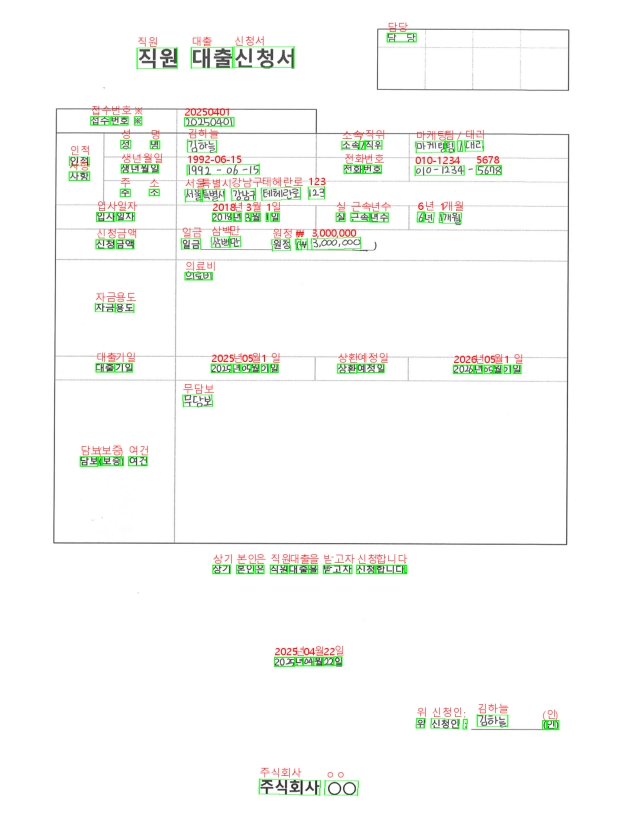
728x90
'AI & 딥러닝' 카테고리의 다른 글
| 불균형 데이터의 Resampling 전략 (0) | 2025.05.20 |
|---|---|
| LLM 용어 정리 - 온도(Temperature) (0) | 2025.02.26 |
| LLM 용어 정리 - 창발 능력(Emergent Abilites) (0) | 2025.02.26 |
| LLM 용어 정리 - In-context learning (1) | 2025.02.26 |
| LLM 용어 정리 - 토크나이징 (0) | 2025.02.26 |